How to Choose the Best Industrial PC Monitor?
Choosing an Industrial Pc Monitor is not simply a matter of matching screen size to a machine. It affects how clearly operators read alarms, inspect production data, and respond to faults. On a noisy factory floor, a dim display or awkward touch interface can slow a decision. Small details matter.
The wider shift toward connected operations makes the choice more consequential. IDC’s Worldwide Edge Spending Guide projected global spending on edge computing to reach $232 billion in 2024. That figure covers much more than displays, but it points to growing investment in computing near equipment and production lines. Deloitte’s 2024 Smart Manufacturing Survey also examines manufacturers’ priorities for connected, data-driven operations. In that setting, a monitor is part of the workstation—not a decorative accessory.
A useful selection process starts with the actual installation. Check viewing distance, ambient light, operating temperature, vibration, cleaning routines, and available mounting space. Then compare brightness, resolution, touch technology, input ports, enclosure protection, and long-term support. A bright screen may look ideal in a showroom yet become uncomfortable at close range. And an impressive specification sheet can still miss the point. The right model depends on the operator, the task, and the environment. This guide explains how to weigh those factors, ask suppliers specific questions, and avoid paying for features the application does not need. Some trade-offs remain. That is worth admitting.
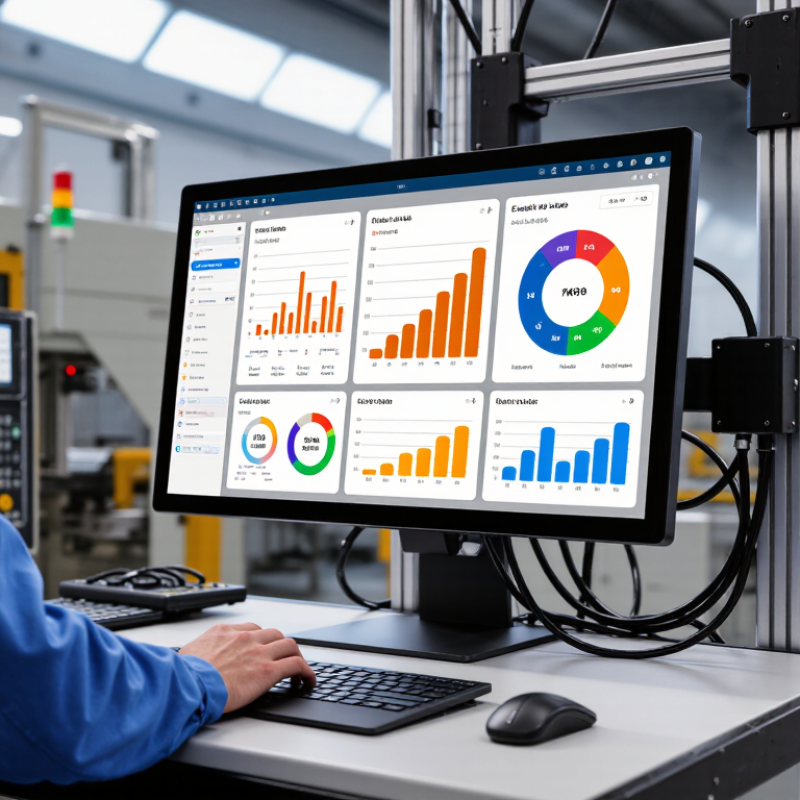
Identify the Industrial PC Monitor’s Operating Requirements
How to Choose the Best Industrial PC Monitor?
Identify the Industrial PC Monitor’s Operating Requirements
Start with the actual installation point, not the monitor specification sheet. Record ambient temperatures during startup and normal operation, plus any heat from nearby motors or enclosed cabinets. Heat matters. Check for dust, moisture, cleaning sprays, vibration, and direct sunlight. These conditions affect enclosure protection, display readability, and expected service life.
Tips: Measure the cabinet opening and viewing distance. Note whether operators wear gloves, and confirm the monitor’s touch technology works with them. Keep a few measurements handy.
Then confirm how the monitor will connect to the industrial PC, including video input, touch interface, and available power. Check mounting depth and access to cables; a screen may fit the front panel but leave no room behind it. For bright work areas, compare readable brightness and viewing angles under real lighting. For continuous shifts, verify the specified duty cycle and operating temperature range. A common planning miss is choosing for the average day and ignoring cold starts or brief temperature peaks. Datasheets help, but compare their limits with measured site conditions and allow a practical margin.
Evaluate the Installation Environment and Mounting Options
Choose the installation location before comparing monitor specifications. Check nearby heat sources, airborne dust, washdown spray, vibration, and available service space. IEC 60529 defines enclosure protection ratings: an IP65 rating indicates dust-tight protection and resistance to water jets, not immersion. That distinction matters near cleaning stations. Don’t assume the rating alone makes a monitor suitable; connectors, cables, and mounting seals also affect the finished installation.
Mounting changes both usability and maintenance. A panel mount can sit nearly flush with a machine door, but the cutout needs accurate measurements and rear clearance. A VESA arm offers adjustment; VESA’s Flat Display Mounting Interface specification includes 75 × 75 mm and 100 × 100 mm patterns. Check the monitor’s supported pattern and the mount’s load rating. The hole pattern is not a load guarantee. Leave room for cable bends and door movement, too.
Consider how operators actually use the screen. A monitor mounted too high may cause awkward viewing, while a vibrating arm can make small controls hard to select. Check reach, viewing angle, glove use, and nearby moving equipment at the real workstation. It is tempting to treat “IP65” as a complete answer; it isn’t. Recheck the proposed position after installation, because a tidy drawing may miss a cable snag or blocked airflow.
Compare Display Size, Resolution, Brightness, and Touch Features
How to Choose the Best Industrial PC Monitor?
Display size should match both the viewing distance and the available panel space. A 15-inch screen may suit a compact machine, while a larger display can make detailed process diagrams easier to read from across a control room. Resolution matters too. Choose enough pixels for clear text and interface elements, but check that the operating system can scale them comfortably. Tiny labels are still hard to use, even on a sharp screen.
Brightness depends on the installation. A monitor in a dim control cabinet needs less output than one near a sunlit window. Check the stated brightness in nits, then assess glare and viewing angle under real lighting. More brightness is not always better. It can increase power use and eye strain. Test it onsite.
Touch features deserve hands-on checks. Projected capacitive touch supports familiar gestures, but gloves, moisture, or a protective cover may affect response. Resistive touch can work with many gloves and styluses, though the feel differs. Try the actual gloves and cleaning routine before choosing. This step is easy to rush, and the specification sheet cannot reveal every awkward tap. A slightly imperfect fit may be acceptable; missed inputs during a busy shift are not.
How to Choose the Best Industrial PC Monitor? – Compare Display Size, Resolution, Brightness, and Touch Features
Typical configurations are shown for comparison. Actual specifications vary by model; check the product datasheet and operating environment before purchasing.
| Display Size | Example Resolution | Typical Brightness | Touch Options | Best Fit | Selection Notes |
| 10.1 in | 1280 × 800 | About 300–500 cd/m² | Projected capacitive (PCAP) or resistive | Compact control panels and space-constrained equipment | Small footprint; check that controls and text remain readable at the intended viewing distance. |
| 15.6 in | 1920 × 1080 | About 300–500 cd/m² | PCAP or resistive | Machine interfaces and operator stations | Full HD provides more workspace than lower-resolution compact displays; confirm application scaling. |
| 21.5 in | 1920 × 1080 | About 250–500 cd/m² | PCAP or resistive | Production dashboards, process control, and shared operator stations | A larger screen can improve visibility from farther away; consider available panel-mount space. |
| 24 in | 1920 × 1080 or 1920 × 1200 | About 250–500 cd/m² | PCAP or resistive | Control rooms and applications displaying multiple windows | A 1920 × 1200 format offers extra vertical workspace; ensure the computer supports the chosen resolution. |
| Decision Factor | What to Check | Practical Guidance |
| Brightness | Rated luminance in cd/m² and whether the screen faces direct sunlight | Standard indoor areas often suit roughly 250–500 cd/m². Bright ambient light may require a higher-brightness display and suitable anti-glare treatment. |
| Resolution | Native resolution, aspect ratio, and computer graphics output | Choose a resolution that supports the application layout and is compatible with the computer. Higher resolution provides more detail but may require interface scaling. |
| Touch Technology | Glove use, water or contaminants, input method, and required touch points | PCAP commonly supports multi-touch and a glass surface. Resistive touch responds to pressure and can be operated with many gloves or a stylus; performance depends on the specific design. |
| Installation and Environment | Panel cutout, mounting method, operating temperature, ingress protection, and available ports | Match the monitor’s mechanical and environmental ratings to the enclosure and site conditions; verify touch and display connections with the host computer. |
Check Connectivity, Compatibility, and Control Requirements
How to Choose the Best Industrial PC Monitor?
Check the connection before comparing screen sizes. Match the monitor’s input to the industrial PC’s available ports, such as HDMI, DisplayPort, or VGA. For touch operation, confirm how touch data connects; a video cable alone may not carry it. Check the operating system, resolution, and touch-driver support too. A monitor that lights up can still misread taps or leave part of the display unused. Small details matter.
Control conditions shape the choice. On a packaging line, an operator may tap the screen with gloves while vibration shakes the panel. Check whether the touch technology responds reliably in that setting, and whether the display offers enough brightness under overhead lights. Review mounting dimensions, cable clearance, and any required protection against dust or moisture. These details are easy to overlook during a desk-side test. I would test the actual PC and monitor together before ordering; compatibility sheets do not catch every awkward driver or cable issue.
The business case is growing: Deloitte and MAPI’s 2019 Smart Factory Study found that 86% of surveyed manufacturers expected smart factories to be a primary source of competitiveness within five years. Rockwell Automation’s 2024 State of Smart Manufacturing Report found that 95% of respondents were using or evaluating smart-manufacturing technology. Those figures suggest more connected production, but not that every station needs a complex display. Choose controls operators can use quickly, and verify that essential functions still work if the network connection drops.
How to Choose the Best Industrial PC Monitor?
Compare the practical importance of key requirements when evaluating an industrial PC monitor.
Scores are illustrative priorities on a 1–5 scale, not product ratings. Check that video and touch interfaces match your PC, confirm operating-system and driver support, and verify that the display’s controls, brightness, mounting, and environmental protection suit the installation.
Assess Durability, Certifications, and Long-Term Support
An industrial PC monitor must survive heat, vibration, dust, and repeated cleaning. Check its operating-temperature range and request test evidence for vibration and shock, such as IEC 60068 testing. For sealed enclosures, verify the exact IP rating under IEC 60529; an IP claim alone does not prove resistance to impact or chemicals. Ask for the test conditions and report number. A certificate is useful, but it is not a promise that the screen will last in your factory. Small detail, big difference.
Support matters when a display fails mid-shift. The 2024 True Cost of Downtime report estimated that downtime costs the 500 largest companies about $1.4 trillion annually, or 11% of revenue. That figure is not a forecast for every plant, but it shows why spare-part access and repair times deserve scrutiny. Ask how many years panels, cables, and firmware updates will remain available. The Global E-waste Monitor 2024 reported that only 22.3% of 2022’s e-waste was formally collected and recycled. Repairable components may reduce replacement waste, though they cannot guarantee a longer service life. I would compare written support commitments, not just a product’s stated lifespan. A vague promise is hard to use.


 House of Worship
 Transportation
 Trade shows led display
 retail
 Creative Led Solutions
 Hospitality
 Higher Education
 Corporate LED